Chrome now stops and asks before opening sites without HTTPS. Is yours one?
Google is switching Chrome to secure connections by default, with a warning before insecure sites load. Who sees it, how to check your website and how to fix it.
· 5 min read
By the Blessed Pixels team
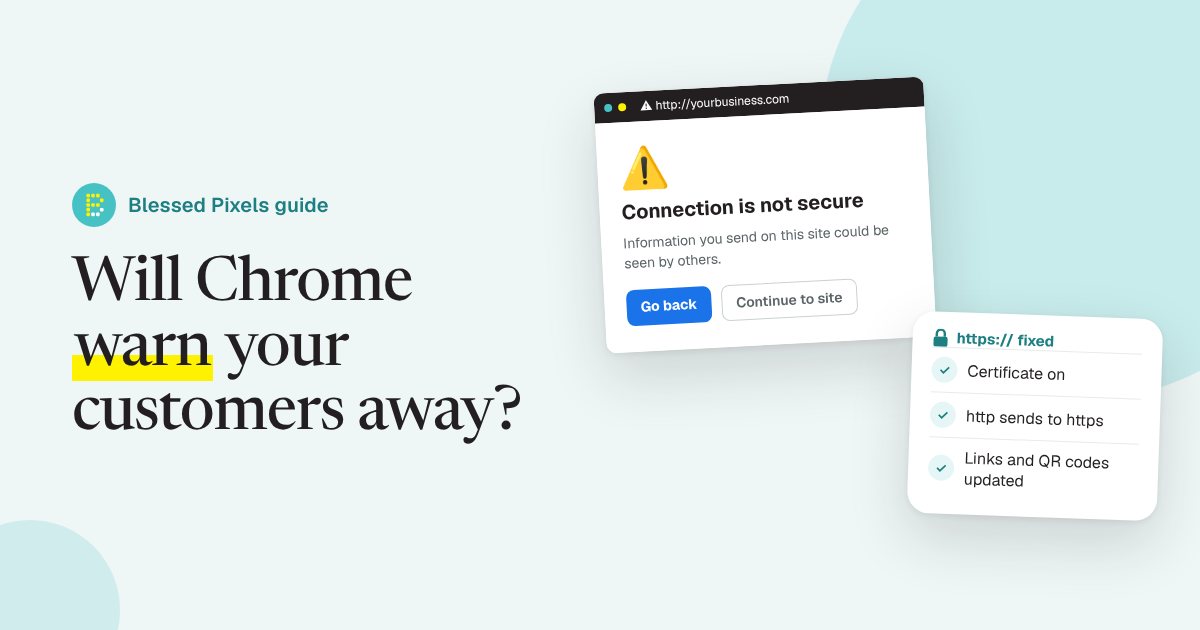
A customer taps the link on your Instagram bio. Instead of your homepage, they get a full-page message saying the connection isn't secure, with a button to carry on anyway. Plenty of people will tap back and go somewhere else.
That's the change Google announced a year ago and timed for this autumn. In its post HTTPS by default, the Chrome security team said that with Chrome 154, due in October 2026, it would turn on the "Always Use Secure Connections" setting for everyone. Chrome then asks before it opens a public website that doesn't use HTTPS.
Most modern websites won't notice a thing. Older ones, and the odd forgotten corner of newer ones, might. This post covers who's affected, a two-minute check and what to do if your site fails it.
What HTTPS is, in one paragraph
HTTPS is the secure version of the way browsers talk to websites. It's what puts the padlock, or a similar icon, next to the address. It needs a security certificate on your website (people often call it an SSL certificate), which proves the site is really yours and scrambles what visitors send, like a contact form or a card number. Without it, the address starts with plain http:// and Chrome has been marking those pages "Not secure" for years. The new part is the warning before the page even loads.
Every website we build on our website plans comes with hosting and a security certificate included, so this is one of the things we deal with for you.
Who's likely to see the warning
You're probably fine if your website is on a modern builder or a well-run host and you can see a padlock when you visit it. The risk sits in a few familiar places:
- A website set up years ago that never had a certificate added.
- A certificate that expired and didn't renew, often after a change of hosting or a lapsed payment.
- A separate part of your site, such as a booking page, an old blog or a shop on its own subdomain, that was set up differently from the rest.
- Old links you don't control: directory listings, social bios, email signatures and QR codes on printed menus that still point to the http:// address.
That last group is sneaky. Your website may be perfectly secure, but if the link people use starts with http:// and your site doesn't send them on to the https:// version, some visitors could meet the warning first.
If your site is several years old, this tends to arrive alongside other upkeep jobs. We wrote about another one, the end of security fixes for older PHP versions, last week.
A two-minute check
You don't need any technical tools for this.
- Open Chrome and type your web address with http:// at the front, for example http://yourbusiness.co.uk. Press enter.
- Look at where you land. The address bar should now show https:// (Chrome may hide it, so click the address to see it in full) with no warning.
- Try it again with and without "www." at the front. Both should end up on the same secure page.
- Visit your booking, shop or blog pages the same way if they live on a different address.
- Click the padlock or the icon next to the address and check the certificate is valid.
If any of those shows a warning or "Not secure", you have something to fix. Our free AI check also tests whether your site opens on a secure address, as one of 17 checks, and takes about 30 seconds.
How to fix it
For once, the fix is cheap. Free certificates have been widely available for years, and most hosting companies now add one automatically or with a single button.
- Log in to your hosting account and look for "SSL", "Security" or "Certificates". Turn it on for every version of your address, with and without www.
- Make sure visitors are sent from http:// to https:// automatically. Many hosts have a "Force HTTPS" switch. In WordPress, your site address in Settings, General should start with https://.
- Reload your pages and look for a warning about "mixed content", which means some images or scripts still load over http://. Updating old links in your pages usually clears it.
- Change the links you control to the https:// address: Google Business Profile, social bios, directories and email signatures.
- Next time you reprint a menu or flyer, update the QR code to the https:// address too.
If your host won't add a certificate, or charges a lot for one, that's a sign it might be time to move. If you'd rather not touch any of this, our plans include hosting and a security certificate, and the questions about website plans explain what we look after and what stays yours.
Signs it's time for a new website instead
Sometimes a missing certificate is a symptom. If nobody has logged into the hosting account for years, the person who built the site has moved on, and the pages don't work well on a phone, fixing HTTPS only buys you time.
A newer site built around what your customers need to know, and looked after every month, removes this whole class of problem. That's what our website plans are for. The website plan terms set out exactly what's covered.
Frequently asked questions
Will Chrome block my website if it doesn't use HTTPS?
Not block it, but Chrome shows a warning and asks before loading it. Visitors can choose to continue, but many won't.
Do I need to pay for an SSL certificate?
Usually not. Free certificates are widely used, and most hosts include one. Paid ones exist but aren't needed for a typical business website.
My site has a padlock. Am I safe?
Probably. Also check that the http:// and www versions of your address send people to the secure page, and that pages on other addresses, such as a booking system, are secure too.
Does HTTPS help with Google and AI search?
Google has treated HTTPS as a small ranking signal for years. More important, visitors who never see a warning are far more likely to stay and get in touch.
What about other browsers?
Safari, Firefox and Edge all mark insecure pages too, in their own ways. Securing your site fixes it for all of them.